
Mac guide
How to Keep a Sticky Note Floating on Mac
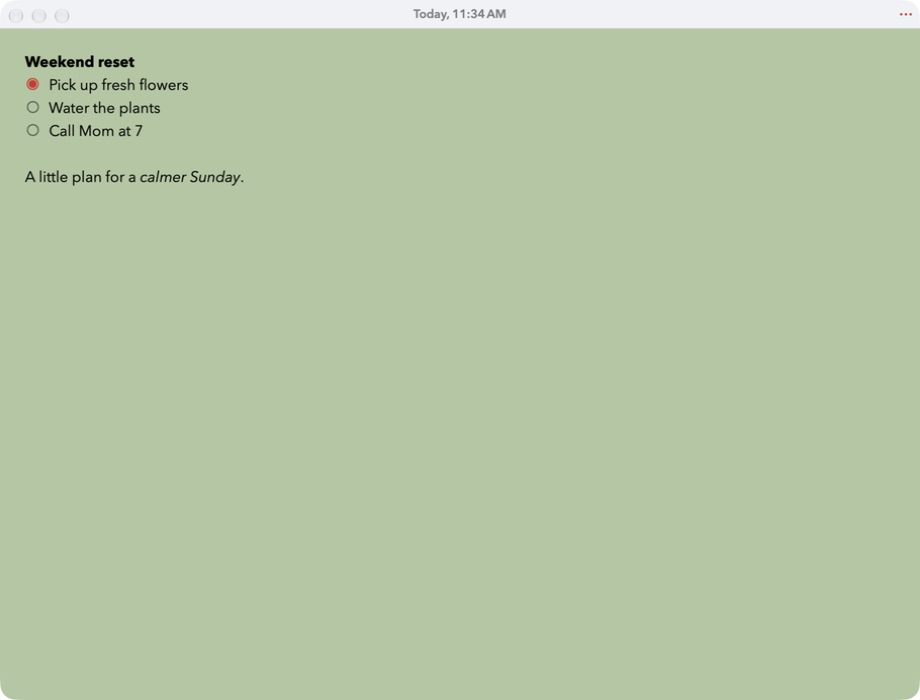
Keep talking points beside a video call, reference text beside a document, or your next step beside your work. Hi Sticky can keep a note window in front of ordinary app windows.
Keep a note in front
Open your note in Hi Sticky.
Select an existing note or create a new one. Write the text you want to keep visible while you work.
Open the note’s menu.
Click the three-dot button in the note window and select Keep Window in Front.
Place the note beside your work.
Move and resize the window so the useful text stays visible. Switch to another ordinary app window; the note will remain in front.
The quick way
With the note window active, press ⌥ Option + ⌘ Command + F to toggle Keep Window in Front.
Use the same shortcut again to return the window to its normal behavior.
Use more than one note window
Press ⇧ Shift + ⌘ Command + N to open a new window. You can keep a different note in each window and choose Keep Window in Front for the windows you want to float.
The setting belongs to each window. Turning it on in one window does not turn it on for all your other note windows.
Return to a normal window
Open the three-dot menu in the floating note and select Keep Window in Front again to turn it off. The note stays open and its content is unchanged.
If a note doesn’t stay visible
- Check the right window: enable Keep Window in Front on the particular note window you want to use.
- Check which window has focus: the keyboard shortcut works when Hi Sticky’s note window is active.
- Try ordinary desktop windows: full-screen apps, other Spaces, and macOS system panels can behave differently. Keep Window in Front does not promise visibility above every system surface.
Take the same note to your iPhone
Enable iCloud for Hi Sticky on devices using the same Apple Account. Once the note has synced, you can open it on iPhone or put it in a Home Screen widget.
Keep a little note close.
Download Hi Sticky free. Hi Sticky+ is an optional one-time upgrade.
Download on theApp Store