iPhone guide
How to Put a Note on Your iPhone Home Screen
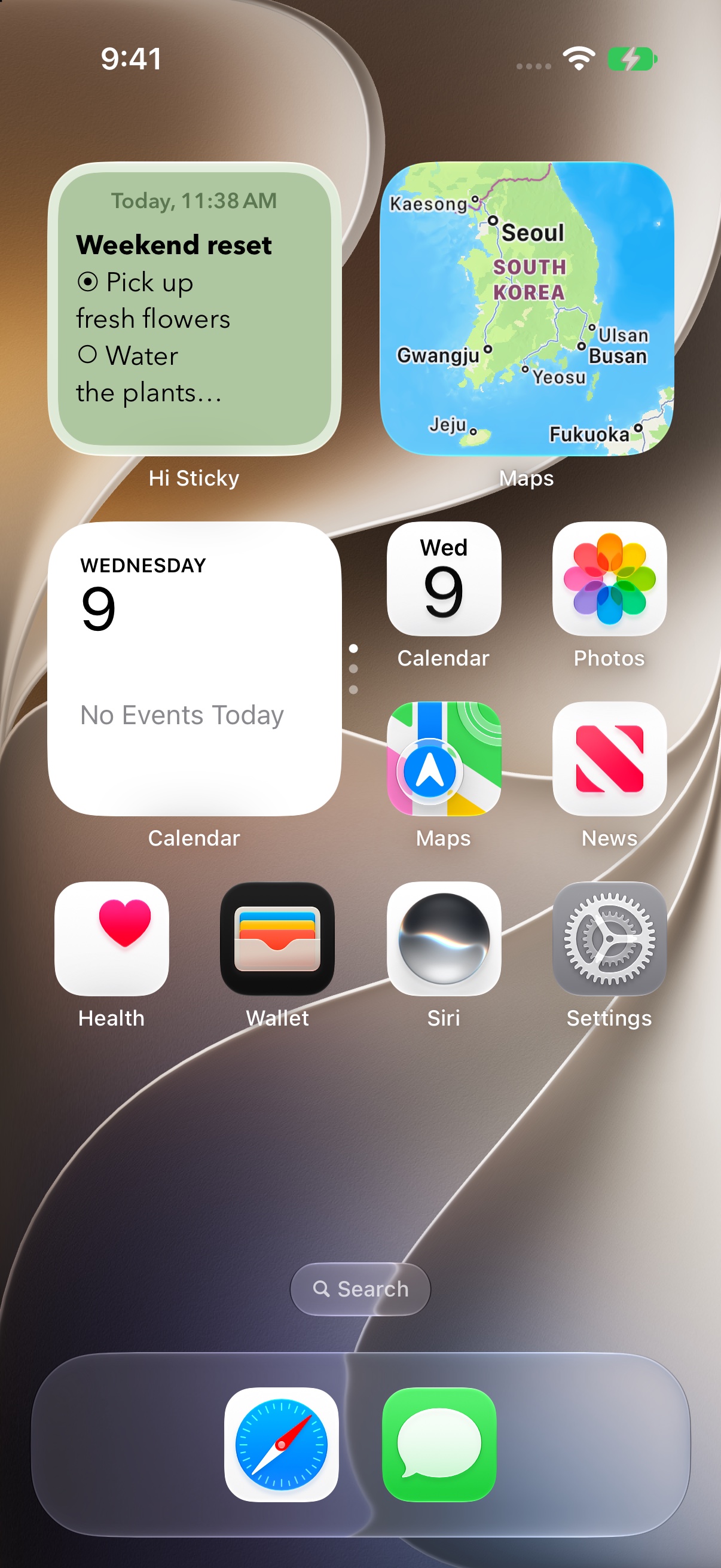
Keep a shopping list, a useful address, or a thought you want to remember on your Home Screen. A Hi Sticky widget lets you read a note without opening the app.
Add a note widget
Create a note in Hi Sticky.
Open the app and write something you want to keep nearby. Return to your iPhone Home Screen.
Open the widget gallery.
Press and hold a blank area of the Home Screen until the icons start moving. Use Edit, then Add Widget. On older iOS versions, use the + button.
Find Hi Sticky.
Search the gallery for Hi Sticky and choose the note widget. Pick a size, add it, and finish editing the Home Screen.
Choose what stays in view.
The note widget can show your most recently modified note. To keep one particular note on display, follow the steps below.
Keep a specific note in the widget
Touch and hold the note widget, then choose Edit Widget. Turn Recent off and select the Note you want to display. Tap outside the widget to finish.
Leave Recent on if you prefer the widget to follow your most recently modified note. This is useful for a scratchpad that changes throughout the day.
Make it easier to read
Choose a larger widget if your note needs more room. The widget uses the note’s font and background and preserves supported text formatting. Keep the most useful information near the start of a long note.
Hi Sticky+ adds widget display controls, including font size and options to hide the date or remove empty lines.
If the note isn’t showing
- Hi Sticky is missing from the gallery: open the installed app once, create a note, then check the gallery again.
- The widget shows a different note: check whether Recent is enabled. Turn it off to select a fixed note.
- A selected note was deleted: edit the widget and choose another note.
- A recent edit has not appeared: open Hi Sticky to confirm the change. iOS controls widget refresh timing, so updates may take a moment.
- The note was written on another device: confirm iCloud is enabled for Hi Sticky on both devices and that both use the same Apple Account. Allow the note to sync to your iPhone first.
For the system’s widget controls, see Apple’s guide to adding and editing iPhone widgets. Button placement can vary by iOS version.
Keep a little note close.
Download Hi Sticky free. Hi Sticky+ is an optional one-time upgrade.
Download on theApp Store